.png)
Event Setup
2 - 12 months from event
Auction & Guest Management
1 week - 2 months from event
Create Raffle Tickets and Multi-Sale Items
Use this option to create raffle items, centerpieces, Heads/Tails, sign-up parties, or any item sold multiple times at the same price (with optional quantity limits).
Raffle Tickets or Multi-Sale Items
Items > Manage Items
Use this section to create a raffle item for your event.
To Add a Raffle Item or Multi Sale Item
-
Select the blue Add Item button
-
Enter the Item Name
-
Example: Raffle, Centerpieces, Heads or Tails, Sign-Up Parties
-
-
Enter the Item Number
-
Example: 200
-
-
Select a Category
-
Add a new category by selecting the blue Add Category button
-
-
Set Status
-
Set to Active when you are ready to begin selling
-
-
Set the Closing Time
-
Item Type
-
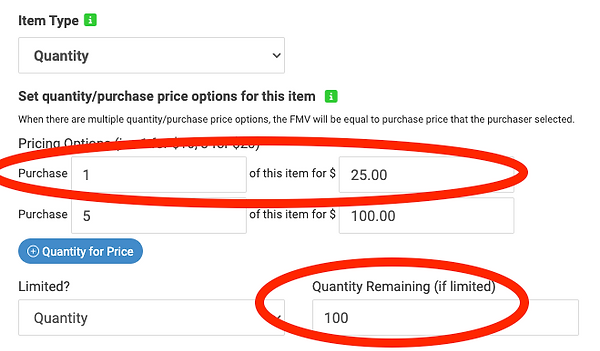
Select Quantity
-
-
Quantity & Pricing Options (Examples)
-
Purchase 1 for $25
-
Purchase 5 for $100
-
-
Add Description & Extras (details about your raffle)
-
Add Image Details
-
Scroll down to bottom to add Image (up to 10)
-
1080 x 780 px for best results
-
TIP for Numbering Categories
Number items by category to keep your auction organized.
For example:
-
Sports: 20–29
-
Travel: 30–39
-
Multi-sale items: 500+ (Ex. Raffle (#500); Heads/Tails (#501))
This approach makes items easier to manage and locate throughout your auction.
If your raffle is limited (e.g., a Tuition Raffle), you can cap the total quantity available — such as 100 tickets or another defined limit.
Add Raffle Tickets / Multi-Sale Items to the Event Ticket Page
Event Tickets > Ticket Page Settings >Additional Features
Use this section to add raffle tickets or multi-sale items to your event ticket page for pre-event selling. This helps keep all sales in one place for your event.
To Add Raffle or Multi-Sale Items
-
Under Additional Features, locate Quantity Items Title and enter an appropriate title
-
Example: Sign-Up Parties or Raffle
-
-
Under the Quantity Items section, select the items you want to sell
-
To select or deselect multiple items, hold Cmd on your keyboard while clicking
-

