.png)
Event Setup
2 - 12 months from event
Auction & Guest Management
1 week - 2 months from event
Setup your Auction & Event Settings
This guide walks through how to configure Auction Settings in HelloFund, including bidder registration, payment options, text messaging, Fair Market Value display, and auction timing. These settings should be reviewed and finalized before your event goes live.
How to Access Auction Settings
Event Admin > Software Settings > Auction Settings
General Event Details
Select Time Zone, enable max bidding and update event start time.
Software Settings > Auction Settings > Bidder Settings
Configure how bidders register and participate in your auction.
-
Update Bidder Registration settings
-
Require Credit Card on File
-
Set the Starting Bidder Number
Settings When Selling Tickets and Sponsorships
When selling tickets and sponsorships, we recommend the following bidder settings:
-
Allow Bidder Registration: No
-
Enable Text to Register: No
-
Require Credit Card Info: Yes
-
Starting Bidder Number: 1000

Example Welcome Text Message
Welcome to Annual 💃🏻 Soiree! [t]. Check out the auction and bid now [u]
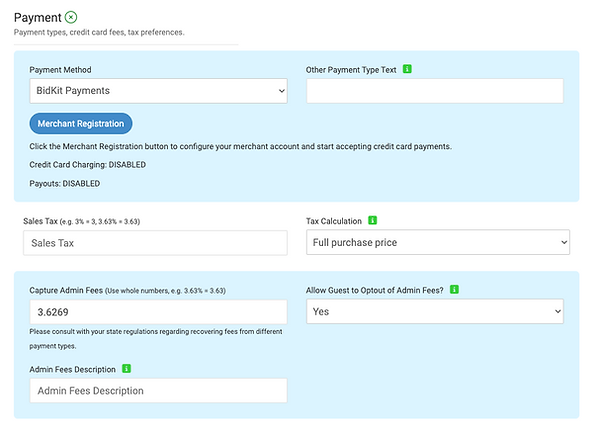
Software Settings > Auction Settings > Payment
Configure your payment settings as follows:
-
Payment method: BidKit Payments
-
Capture Admin Fees: Enter 3.6269
-
Allow Guest to Opt Out of Admin Fees? Yes*
*If you want to force your Donors to pay the admin fee, please change this to No.
Covering Processing Fees
Adding the 3.6269% fee allows donors to cover the processing cost so your organization receives 100% of the ticket or donation amount.
When a Donor Covers the Fee
If the donor chooses to cover the fee, the organization receives the full amount.
Example:
-
Ticket Price: $100.00
-
Processing Fee (3.6269%): $3.63
-
Total Charged to Donor: $103.63
-
Net Amount to Organization: $100.00
If the donor does not cover the fee, it is deducted from the ticket or donation amount.
Example:
-
Ticket Price: $100.00
-
Processing Fee: $3.50
-
Net Amount to Organization: $96.50
Software Settings > Auction Settings > Butler Settings
A welcome text is sent to guests when they check in to the event.
-
Customize the message to include:
-
Bidder Number
-
Table Number
-
A link to the Silent Auction
-
Other event-specific details
-
Software Settings > Auction Settings > Payment
Create a custom text message to send to silent auction winners.
-
This message is automatically sent when the auction is set to close.
-
Use this message to share next steps, payment instructions, or pickup details.
Example Winning Bidder Message
You WON! Head over to check out to pick up your item (s). Complete payment on your phone here [p]
Software Settings > Auction Settings > FMV Settings
Update these settings if you would like to display Fair Market Value (FMV) on your live auction site or on bidder receipts.
Software Settings > Auction Settings > Custom Content
Update the statement footer used on email tax receipts for your event.
-
These receipts are sent to guests once payment is completed.
-
This applies to Silent Auction, Live Auction, Paddles Up, and Raffle transactions.
-
Typically used for event day or event night purchases.
Example Statement Footer
[Nonprofit Organization's Name\] is recognized as a tax-exempt organization under Section 501(c)(3) of the Internal Revenue Code. Our Tax ID # is 00-0000000. Contributions made to our organization are tax-deductible to the extent allowed by law. Please consult with your tax advisor to determine the specific tax implications of your donation. If you have any questions or need additional information, feel free to contact us at [contact email/phone]. Once again, thank you for your generous support.
Goals
Software Settings > Auction Settings > Goals
Update your Silent and Live Auction goals to track progress during your event.
Software Settings > Auction Settings > Countdown Clock
Update the countdown clock to display on your auction page and show guests when bidding ends.
