.png)
Event Setup
2 - 12 months from event
Auction & Guest Management
1 week - 2 months from event
Ticket Page Settings
Before you share your ticket link, take a quick pass through these settings to make sure everything looks right and works smoothly.
How to Access Ticket Page Settings
-
Go to Event Admin
-
Select Event Tickets
-
Click Ticket Page Settings
Event Tickets > Ticket Page Settings > Form Name
Update the title of your ticket page.
-
This field can be left blank.
-
If you change the backend form name, do so before your page goes live.
Event Tickets > Ticket Page Settings > General Settings
Set a maximum number of guests allowed to attend your event.
-
This limit applies to both ticket sales and sponsorships.
-
Once the maximum is reached, no additional registrations can be completed.

Event Tickets > Ticket Page Settings > Venue Information
Add the address for your upcoming event.
-
Enter the venue address for in-person events.
-
If your event is virtual or does not have a physical location, leave this section blank.
Event Tickets > Ticket Page Settings > Payment Types
Choose which payment methods are available to donors and purchasers.
-
Available payment options include:
-
Credit Card
-
Cash
-
Check
-
Most organizations use Credit Card and Check.
Important:
The Check option is a pledge only and does not process payment automatically.
To mark a check payment as paid:
-
Go to Event Tickets
-
Select View Ticket Sales
-
Search for the purchaser’s name
-
Click the green Edit button
-
Check the box next to Paid

Event Tickets > Ticket Page Settings > Additional Features
Use this section to customize the titles for each area of your ticket page.
-
You can change the titles for each section to match your event needs.
-
If you are pre-selling raffle tickets:
-
Update Quantity Items Title to Raffle Tickets
-
Select Item (e.g., #106 Raffle Ticket)
-
-
This allows you to track raffle ticket sales both before and after the event.

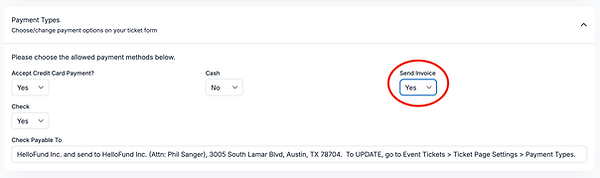
Event Tickets > Ticket Page Settings > Payment Types
Give attendees the option to receive an invoice and pay later instead of paying at checkout.
-
Set Send Invoice to Yes
Customize the Invoice Content
Event Tickets > Ticket Page Settings > Customizable Content
Two fields control what your buyer sees:
-
Invoice Email Message — body of the invoice email
-
Invoice Additional Information — appears in the Payment Details section of the PDF
Use these for a thank you, payment instructions, check mailing address, or your EIN.

Invoice Email Message (example text)
Thank you for your interest in supporting our fundraising efforts. Please take a moment to review your invoice to ensure all details, including your contact information, are correct, and then proceed with submitting your payment. For questions, contact us at organizationemail.
Invoice Email Message (example text)
If mailing a check, please send it to:
Organization Name
Address
City, State Zip
EIN: 00-0000000
💡 Run a test transaction after customizing to confirm everything looks right (you can delete the test sale afterward).
What Buyers See
At checkout, the buyer selects Send Me an Invoice and submits.
They receive an email with:
-
A secure payment link (credit card form auto fills with their info)
-
A PDF invoice they can download, print, or pay later
-
Check payment instructions (if you added them in Invoice Additional Information)
Email with payment link and attached PDF:


Event Tickets > Ticket Page Settings > Customizable Content
Use this section to customize the confirmation email sent after ticket and sponsorship purchases, as well as the email sent when sponsors and table purchasers are asked to update guest information.
Receipt Header (Example)
Use the Receipt Header to display important tax and contact information in your confirmation emails.
[Nonprofit Organization's Name\] is recognized as a tax-exempt organization under Section 501(c)(3) of the Internal Revenue Code. Our Tax ID # is 00-0000000. Contributions made to our organization are tax-deductible to the extent allowed by law. Please consult with your tax advisor to determine the specific tax implications of your donation.
If you have any questions or need additional information, feel free to contact us at [contact email/phone].
Guest Update Link Email Message
This message is sent to sponsors and table purchasers so they can submit guest details prior to the event.
Example
When you have a moment, please use the link below to update your guest information.
To help reduce long lines, send event updates, and enhance the guest experience, please provide the First Name, Last Name, Email Address, and Mobile Phone Number for each guest.
For questions, please contact us at organizationemail!
Event Tickets > Ticket Page Settings > Header Image
Use this section to upload a header image that appears at the top of your event ticket page.
Recommended image size:
-
1272 × 544 pixels
-
Maximum file size: 8 MB
